
Before finalising the grading process in Canvas, take a few minutes to review the Markbook settings. This checklist will help ensure marks are accurate, transparent, and compliant with university policy.
Let’s start!
✅ 1. Check Assessment Alignment
-
Confirm all assignments align with the Class Summary and assessment outline.
-
Ensure the total marks add up to 100 for the cohort (especially for co-taught UG/PG courses).
✅ 2. Verify Points and Weightings
-
Make sure every graded item has points assigned.
-
For non-assessed items, either:
-
Set points to 0, and/or
-
Tick “Do not count this assignment toward the final mark.”
-
✅ 3. Confirm Grade Posting and Policy
-
Ensure all marks are posted on time according to the ANU Policy: Student assessment .
-
Check that hidden grades are visible before results are release.
-
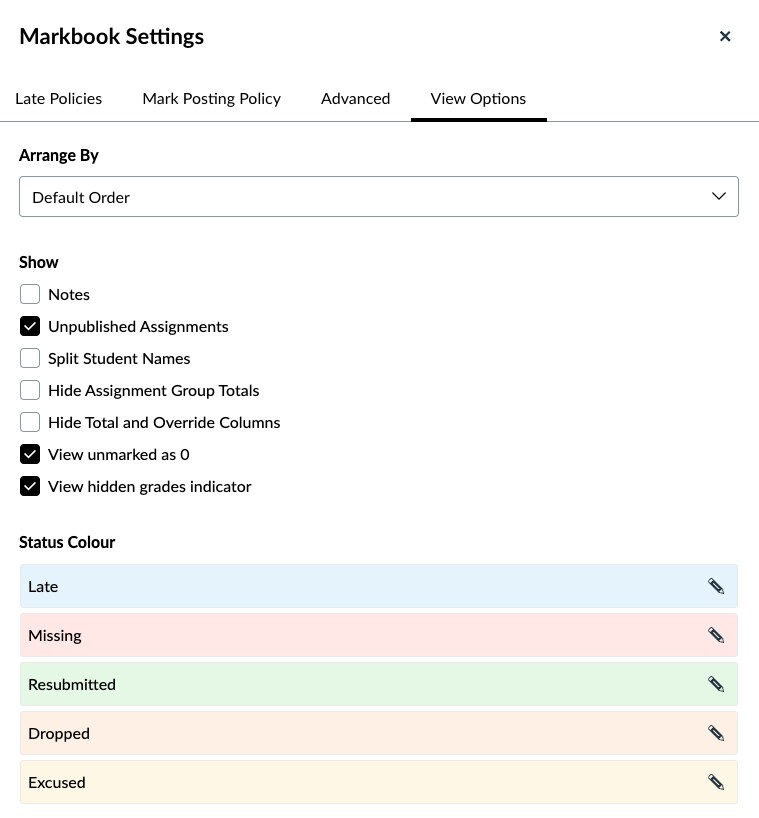
Tip: Under Marks → Cog icon → View Options, tick:
-
“View unmarked as 0”, and
-
“View hidden grades indicator.”
-
-
✅ 4. Review Special Marking Cases
-
For students with approved exemptions, enter “EX” for the relevant assignments.
-
Check course participation tasks, such as “Lab Participation”, are correctly set to “No submission” (manual grading required).
-
If late penalties apply, review that they’re applied correctly — Canvas counts calendar days, not business days, so manual adjustment may be needed.
✅ 5. Final Total Review
-
Double-check that the Markbook total accurately reflects all assessments.
Before you go:
- For more Markbook guidance and practical examples, please refer to CoSM Canvas Markbooks.
(Thank you to Education Technologist of CoSM, Rowena Tayler-Henry)
- If you encounter any issues or have specific concerns, feel free to contact the TELT team at telt.smp@anu.edu.au — we’re here to help!
ANU-wide support:
- Upcoming workshops (multiple sessions available):
- Setting up MarkBook and SpeedGrader
- Managing and Exporting your Markbook