
This week, we will explore the Reading list tool, Leganto, in Canvas, including creating a reading list from scratch and linking it with your course.
What is Leganto, and what can it do?
Leganto is the Australian National University Library’s reading list management system and copyright compliance tool. It is integrated with Canvas (ANU’s new LMS).
Leganto allows academics to:
- Create a course reading list using various resources, such as books, e-books, or chapters, research or scholarly articles, newspaper articles from the ANU library with their links, or even files uploaded from a private computer.
- Organise reading lists based on the course’s structure or requirements.
- Manage and re-use reading lists easily, and update them as needed.
- Build a course reading list personally or collaboratively with colleagues.
- Gain insight into how students engage with course reading materials via reports.
It’s important to use Leganto rather than directly uploading scanned documents or PDFs from your own device as this ensures all the copyright requirements for the university are met. Scanned documents are usually not accessible for students using screen readers or other assistive technologies. If you have out-of-print or rare materials to share, we recommend discussing with the Library directly. You only need to set up Leganto once, and you can use it every year and edit the list as needed.
How to access Leganto in Canvas:
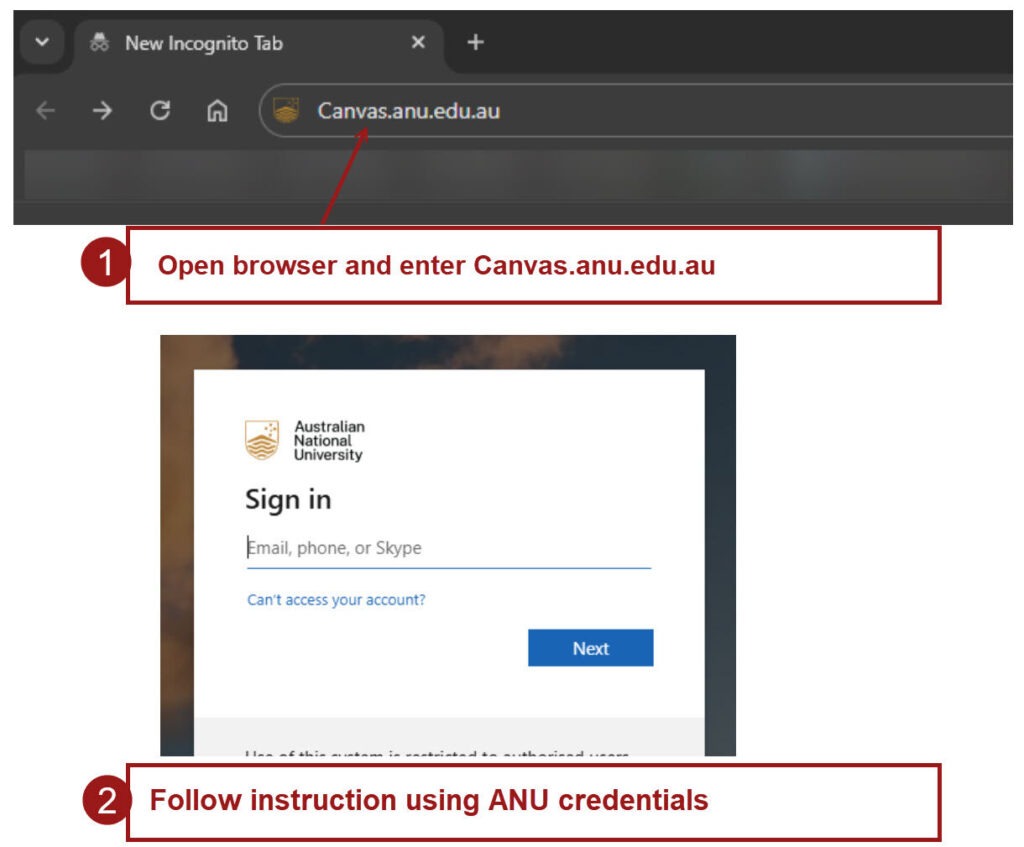
- Go to Canvas.anu.edu.au > Log in with your ANU credentials
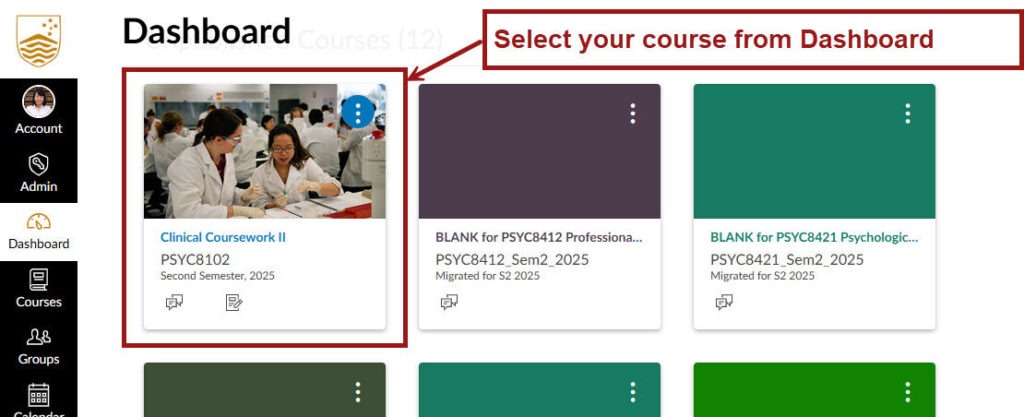
- Select your course from your dashboard
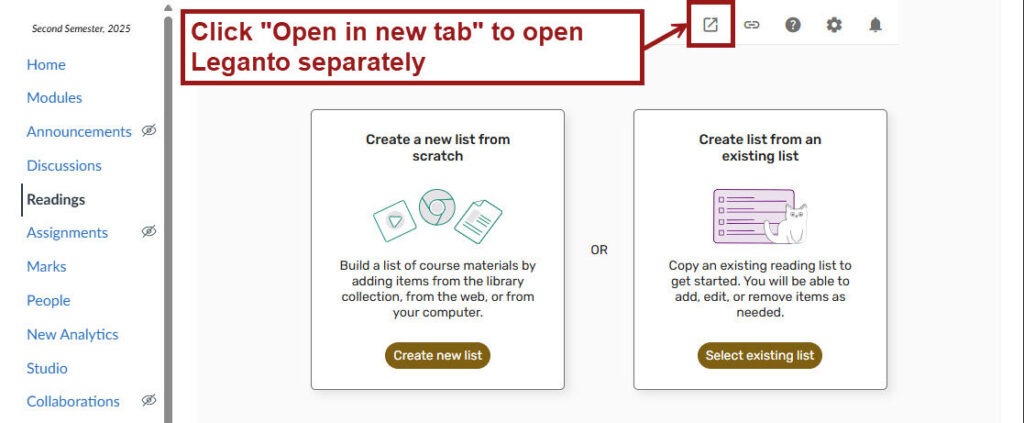
- Course Home Page > Global navigation > Readings

- Open Leganto in a separate browser tab (Optional)
How to create a reading list from scratch
- Navigate to Leganto > Open in New Tab (follow instructions above)
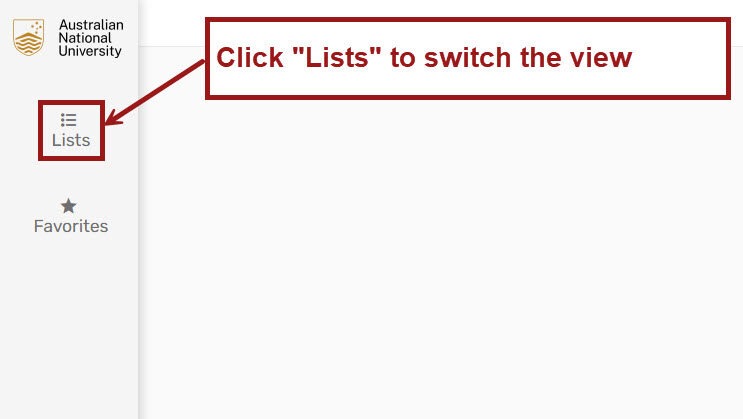
- Open your reading lists by clicking on “Lists” on the Navigation panel on the left
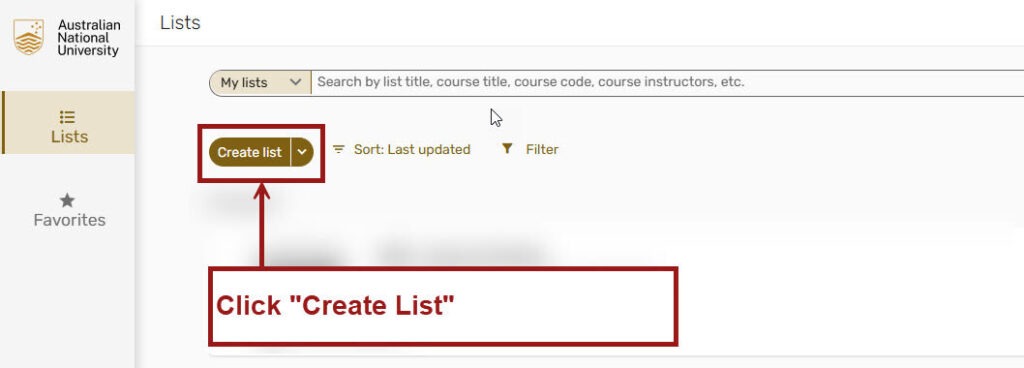
- On the Lists page, choose Create list
- Provide your list with a Title and, optionally, a Description. Click Next, when finished.
You can skip the link to the course at this step as your list does not have any content, and refer to a later step to find out how to connect them.

- Select a template for the list: Default or Week > Click “Create List“
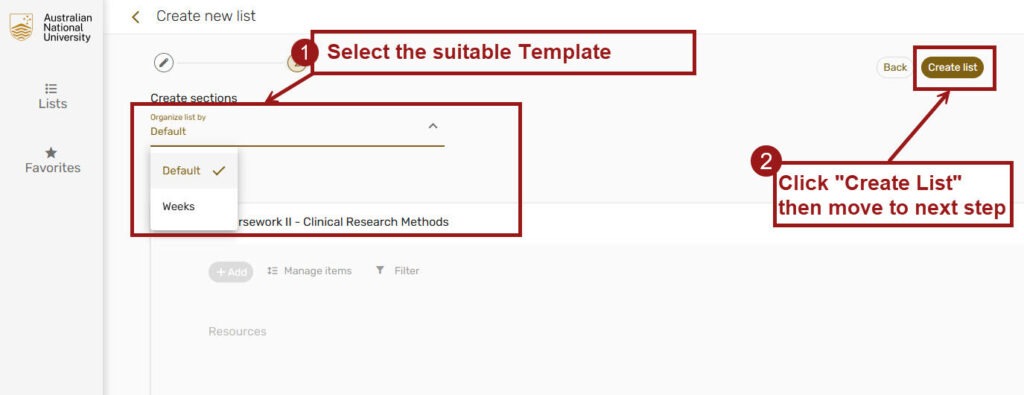
Adding a section to a reading list.
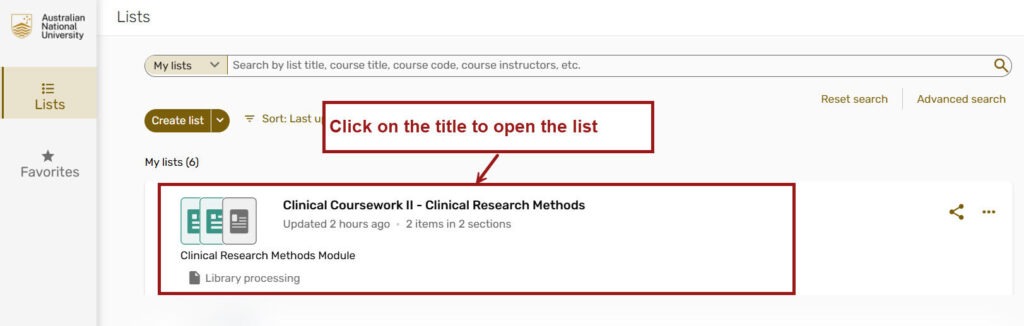
- Click on your list name to open it.
- Click Add > New Section

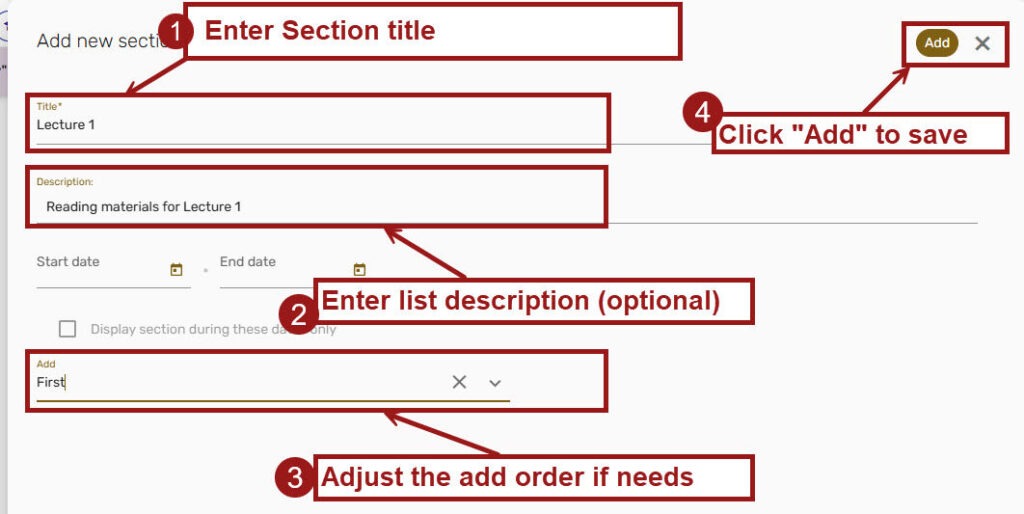
- Fill in the section Title and description > Appear Order > Add
Adding an item to a reading list.
- In the “Lists” view, click the Add button, select the appropriate menu option, and follow the prompt.

A guide for each type of item can be found at ANU LibGuides site.
Make your reading available to your students.
When the list is ready, it can be linked with your course. You can have more than one list link to the course Canvas site. This can be done directly in Canvas or Leganto. In this guide, we will show you how to link your reading from Canvas.
- Log in to Canvas and navigate to Readings in your Canvas site. Select “Create list from an existing list.”
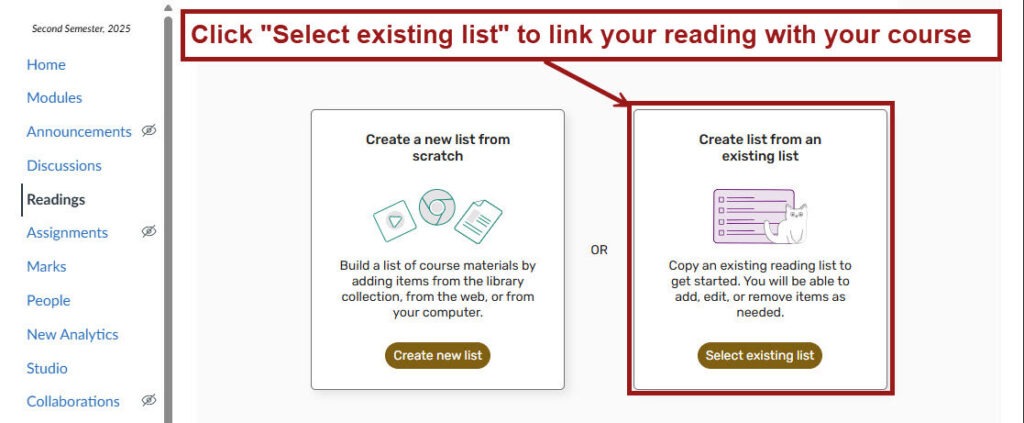
- Review the course details and confirm if they are correct

- Select “Link course to this list” from the desired list
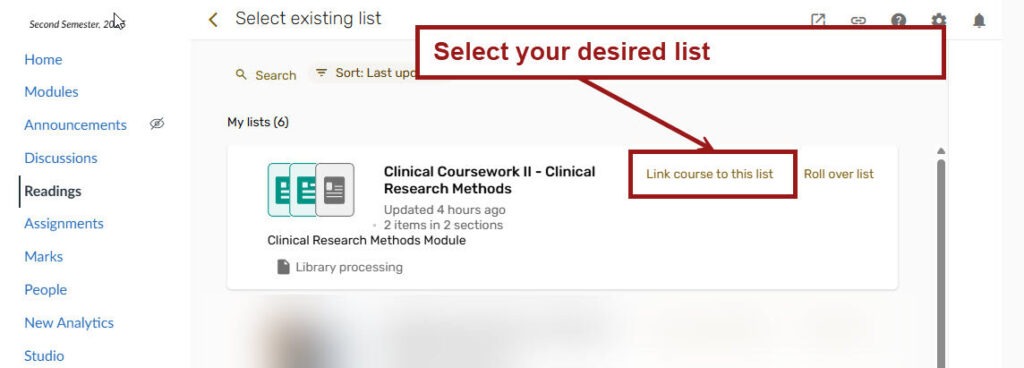
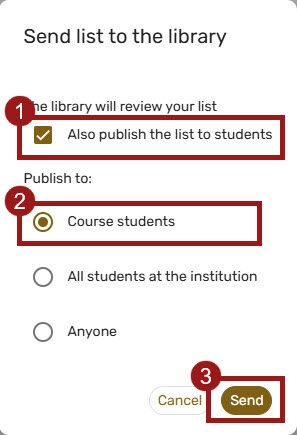
- Click “Send” to notify the library. Librarians will review your list and let you know once they are ready.

- You can also select “Also publish the list to students” before submitting your list to the library if you wish it is available to your students right after the review.
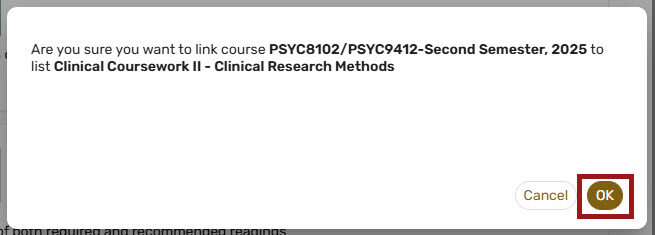
- Now you have your list link with your course, click Ok to finish.
Find out more about Leganto.
You can find more guides on the Leganto Reading List on ANU LibGuides site.
How to get help
For any help or assistance, don’t hesitate to contact the library team at Library.readinglists@anu.edu.au.